

Count up viewer
User manual
August 2022
Description
The «Count Up Viewer» app allows you to visualize static or dynamic data from a list of the site. This app display information in a way of a progressive counter using a numeric, pie or bar layout. The progressive action is a counter animation or an increasing bar according to the layout. Animation starts at the moment where the scroll of the page, is over the component.


Add webpart and setting
1. Go to the page where you want to add the “Count up Viewer” Web Part.
2. If the page is not already in edit mode, click Edit at the top right of the page.
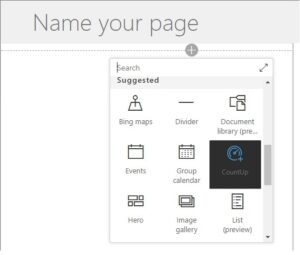
3. Hover your “cursor” above or below a web part or in the center of the section where you want to add the web part to see a line with a + in a circle, like this:

4. Click +, and then select “Count up” from the modern page web part picker to add your web part to page.
5. Notice how the web part is rendered, at that moment, user needs to configure it to enroll data and define others parameters.
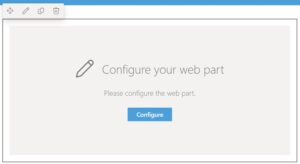
6. Click on configure your web part to open settings.
7. To setting the webpart, user has two sections: Configuration and data.
Configuration
- Count up type: select one layout between numerical, pie or bar.
- Count up type: select one layout between numerical, pie or bar.
- Count up size: select one size between small, medium or large.
- Element orientation: select one orientation between horizontal or vertical.
- Use site color: define to user site theme color or select another main color.
- Prefix: input a text to be a prefix label.
- Suffix: input a text to be a prefix label.
- Max number: indicate the maximum number to be the 100% proportional.
- Duration: Animation duration time in seconds.
Data
- If user select “Show data from”: Collection data, go to the below topic called “Static data settings”.
- If user select “Show data from”: List, go to the below topic called “Dynamic data settings”.
8. Save changes on the page with the web part.
Static data settings
After select show data from: Collection data, user must click the button “Manage collection data” to register every counter data.
- Order: order between one and another counter.
- Text: label below the counter.
- Number: value to increase on the animation of the counter.
Dynamic data settings
After select show data from: List, user must select any site to search list repository.
- Site: any site from the tenant.
- List: any list from the site selected.
- Title: field related to the label below the counter.
- Number value: field related to the value to increase on the animation of the counter.
- Max list elements: number of counters according the list items.
- Filter list by: field to filter according to the next fields below: Filter comparation type, Filter value and Order by.
About trial license
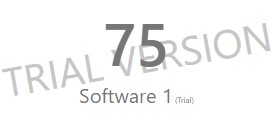
This app has a trial license for 30 days after installing and then, you must contact us to purchase an annual license that will be available by ‘tenant’ from our web services. By those days, users visualize over the control some trial labels but the functionality won’t be limited and users could change settings and see how they work on each layout.
About full license
After 30 days over a trial license, you must contact us to purchase an annual license that will be available by ‘tenant’ from our web services. Our team generate a new license by tenant and it will be registered on our services. All licenses are generated by tenant for one year after purchase.

Sede Medellín:
Cl 37B Sur #27E-90
Interior 135, Envigado, Colombia
Sede Bogotá:
Carrera 20 N0. 45A-08
Oficina 505, Bogotá, Colombia
Línea WhatsApp:
(+57) 302 350 3319 @e-deas